
How to Save Battery on Your Phone
How to Save Battery on Your Phone 1 How to Save Battery on Your Phone How to Save Battery on Your Phone
A Complete Guide to Extend Battery Life
Have you ever left home with a full battery and watched the charge plummet by midday? This is one of the most common frustrations for heavy smartphone users. The good news is that with a few simple adjustments, you can make the battery last longer and even extend the lifespan of the component.
Experts explain that the first step to saving battery is understanding which factors consume the most energy. The screen, background apps, location services (GPS), and connections like Wi-Fi and Bluetooth top the list of the biggest “villains” . But with the right strategies, you can reduce this consumption without giving up essential features.
“I used to complain that my phone battery wouldn’t even last until lunchtime, until I realized the problem wasn’t the device — it was the screen brightness always at maximum and a pile of apps running in the background without me noticing. Once I started turning on battery saver mode and reducing brightness, my routine completely changed.”
How to Save Battery on Your Phone How to Save Battery on Your Phone 1 How to Save Battery on Your Phone
Why Does My Phone Battery Drain So Fast?
Battery consumption is directly related to how we use the device. The screen is the component that consumes the most energy, especially when brightness is at maximum or the refresh rate is high (90 Hz or 120 Hz) . Additionally, apps that continue running in the background consume energy even when not in use, performing updates and synchronizations.
Signal quality is also important. When the phone is in an area with a weak signal, it has to work harder to maintain the network connection, which significantly increases battery consumption . For this reason, airplane mode can be a great ally in areas with poor coverage.
How to Save Battery on Your Phone How to Save Battery on Your Phone How to Save Battery on Your Phone


Quick Adjustments to Save Battery
1. Turn on Battery Saver Mode
Most smartphones already come with a battery saver mode. This feature reduces the device’s performance and limits background processes like automatic updates and data sync, extending battery life . It’s recommended to enable this mode when you’re away from outlets or when the charge is between 20% and 30% .
On Android: Go to “Settings” > “Battery” and turn on “Battery Saver” .
On iPhone: Go to “Settings” > “Battery” and turn on “Low Power Mode” .
Some models offer extreme battery saver modes, like Samsung’s “Ultra Power Saving,” which limits the device to basic functions and can extend battery life for many additional hours in critical situations .
2. Reduce Screen Brightness
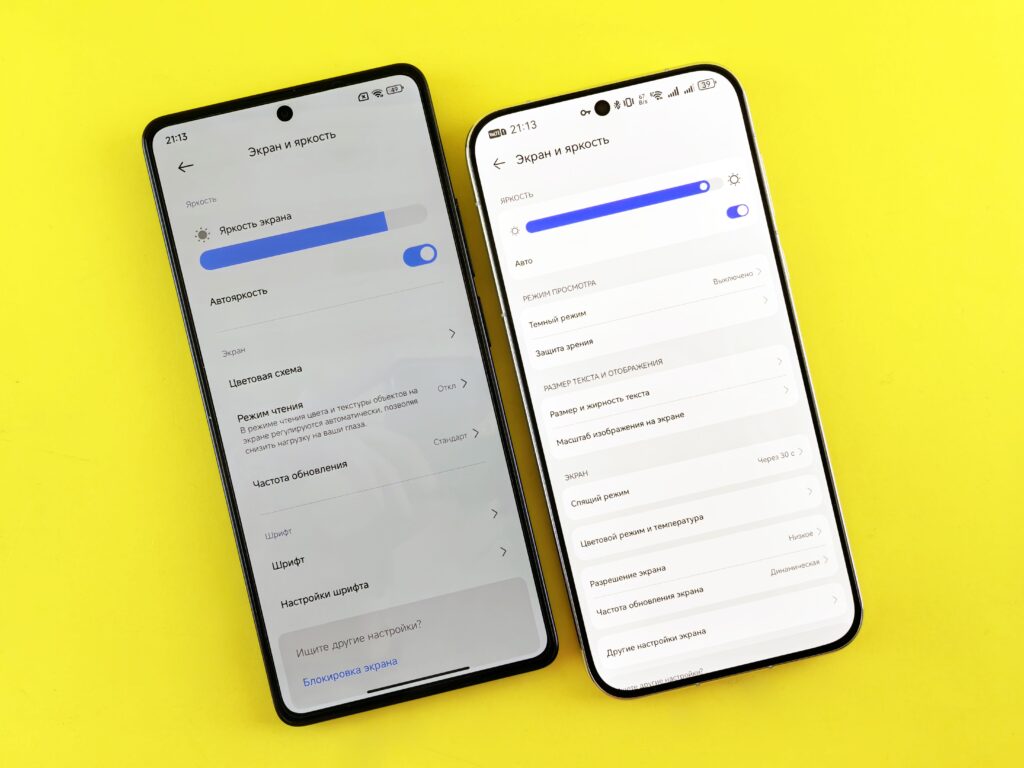
Keeping brightness at maximum is one of the leading causes of excessive battery consumption. The recommendation is to adjust the brightness to a comfortable level, but as low as possible for the environment you’re in . Turn on adaptive (or automatic) brightness so the phone adjusts the light intensity according to the environment, avoiding unnecessary drain .
3. Turn on Dark Mode (Dark Mode)
Dark mode isn’t just about style — it helps save battery, especially on OLED or AMOLED screens. On these panels, black pixels are completely turned off, which significantly reduces energy consumption . The darker the screen, the less energy it uses .
4. Reduce Screen Timeout Time
Setting the screen to lock after one or two minutes of inactivity prevents the display from staying on unnecessarily, consuming battery . This setting can usually be found in “Settings” > “Display” > “Sleep” or a similar option.
5. Use Static Wallpapers
Live wallpapers, although beautiful, consume a lot of energy because they are continuous videos. Always opt for static backgrounds when possible .
How to Save Battery on Your Phone How to Save Battery on Your Phone How to Save Battery on Your Phone
Managing Connections and Apps
6. Turn Off Unnecessary Connections
Keeping Wi-Fi, Bluetooth, NFC, and GPS active all the time drains the battery quickly. Turn off connections you’re not using at the moment .
Extra tip: In places without signal or when you don’t need communication, activate Airplane Mode to stop all connections and extend battery life .
7. Manage Background Apps
Many apps continue running in the background even when you’re not using them, consuming energy and processing power . To identify which apps are the biggest consumers, check the “Battery usage” in your phone’s settings and restrict background activity for less essential apps .
Simply closing an app (swiping it away) doesn’t stop it from running in the background. On Android, you can go to “Settings” > “Apps,” select the app, and tap “Force stop” to completely stop its execution .
8. Turn Off Notifications from Less Important Apps
Each notification turns on the screen, activates the processor, and may trigger vibration — all of which consume energy . Disable notifications from apps you consider less important, such as games, social media, and online stores . This reduces battery consumption and also mobile data usage.
9. Remove Unused Apps
Apps you no longer use can continue running in the background, consuming battery . Regularly clean up your phone and delete apps that are no longer needed .
10. Turn Off Wi-Fi and Bluetooth Scanning
Even with Wi-Fi and Bluetooth turned off, your phone may continue to scan for networks in the background to improve location accuracy, which consumes battery. To disable this constant scanning, go to “Settings” > “Location” and turn off “Wi-Fi scanning” and “Bluetooth scanning” .
How to Save Battery on Your Phone How to Save Battery on Your Phone How to Save Battery on Your Phone
How to Preserve Battery Health Long-Term
Saving battery in daily use is important, but preserving the component’s health in the long run also deserves attention.
11. The 20-80% Rule
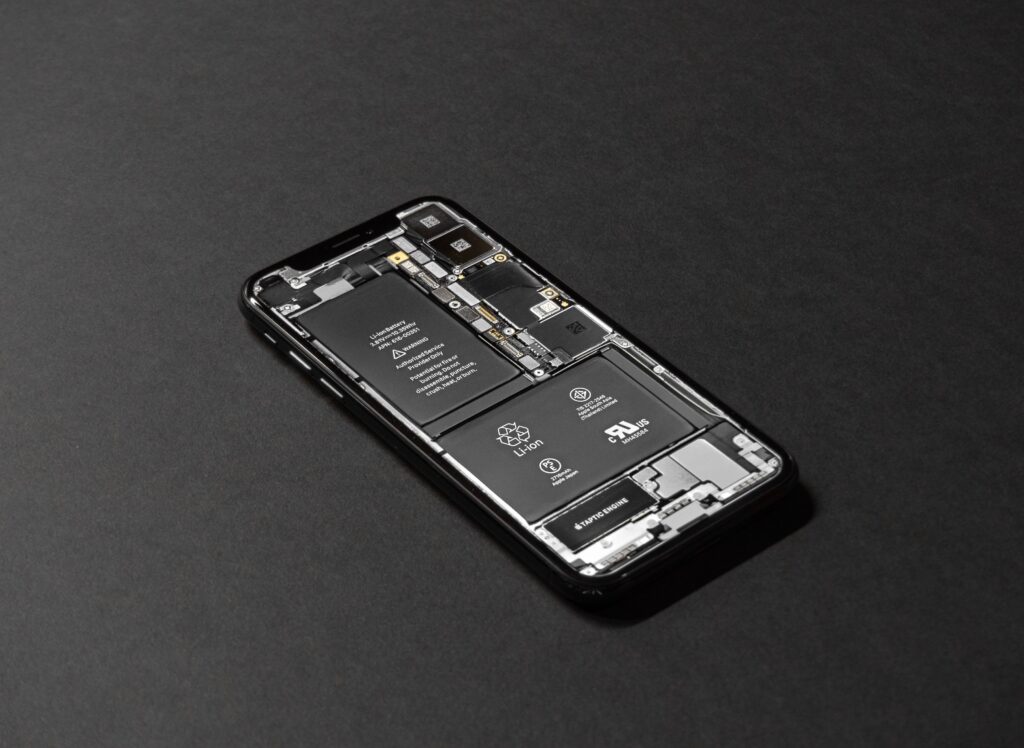
Lithium-ion batteries, found in most smartphones, experience wear when pushed to extremes (0% or 100%). To extend battery life, experts recommend keeping the charge between 20% and 80% whenever possible . The last 20% of charging and the first 20% of discharging require more effort from the components, accelerating chemical reactions that degrade the battery .
Many devices offer optimized charging features. On iPhone, you can enable “Optimized Battery Charging,” which learns your routine and prevents the device from spending long periods at full charge. On Samsung, the “Battery protection” mode allows you to limit charging to 80% .
12. Avoid Extreme Temperatures
Heat is the battery’s worst enemy. Leaving the phone exposed to the sun, like on a car dashboard, in hot sand, or on hot surfaces, accelerates the chemical degradation of internal components . On hot days, remove thick cases that can trap heat and help the device dissipate temperature .
Avoid using the phone for heavy tasks (like gaming or high-resolution videos) while it’s charging, as this increases heat and accelerates battery wear .
13. Use Original or Certified Chargers
Counterfeit chargers can send incorrect voltages, causing overheating, short circuits, and even shock risks . Always prefer original chargers or certified brands to protect the device’s integrity and battery .
“I confess I resisted the 20-80% rule for a long time. I always left my phone charging overnight. But after a few months following this practice, I noticed my device’s battery stopped degrading so quickly — today I can’t live without this habit anymore.”
How to Save Battery on Your Phone How to Save Battery on Your Phone How to Save Battery on Your Phone

Common Mistakes When Trying to Save Battery
- Using battery saver mode all the time: Although helpful, this feature limits important device functions. Use it only when necessary .
- Closing all apps constantly: Repeatedly closing apps can consume more battery than keeping them open, as the system needs to reload them each time you open them. Focus on closing only apps that consume significant background power.
- Keeping connections active unnecessarily: Wi-Fi, Bluetooth, and GPS active all the time consume battery even when not in use. Turn them off when you don’t need them.
- Ignoring heat: Leaving the phone exposed to the sun or in hot places damages the battery in the long run. Avoid this practice.
How to Save Battery on Your Phone How to Save Battery on Your Phone How to Save Battery on Your Phone

Conclusion
Saving your phone’s battery isn’t just about making the charge last longer on a daily basis, but also about preserving the component’s health for longer. With simple adjustments — such as enabling battery saver mode, reducing brightness, managing background apps, and following the 20-80% rule — you can extend your device’s battery life and ensure it continues to perform well for years. Remember: small habit changes generate big results.
How to Save Battery on Your Phone How to Save Battery on Your Phone How to Save Battery on Your Phone
Frequently Asked Questions
How to save phone battery without losing performance?
The balance lies in adjusting specific settings, such as reducing screen brightness, enabling dark mode on OLED screens, and managing background apps, while maintaining the device’s overall performance .
Does battery saver mode damage the phone?
No, but constant use can limit important features like background updates and automatic sync. It’s recommended to activate it only when needed .
How to make phone battery last longer in daily use?
Besides adjusting brightness and connections, turn off notifications from less important apps, remove widgets and live wallpapers, and close apps that consume significant background power .
Is it okay to leave the phone charging overnight?
Modern phones have systems that stop charging at 100%. However, to preserve long-term battery health, it’s preferable to avoid leaving the device plugged in for extended periods .
Does fast charging damage the battery?
Original fast chargers are safe, as they communicate with the device to adjust power. What can damage the battery is the heat generated during fast charging, not the speed itself .
How to identify apps that consume the most battery?
On Android, go to “Settings” > “Battery” > “Battery usage.” On iPhone, go to “Settings” > “Battery” to view consumption by app .

How to Save Battery on Your Phone How to Save Battery on Your Phone How to Save Battery on Your Phone
How to Save Battery on Your Phone How to Save Battery on Your Phone How to Save Battery on Your Phone