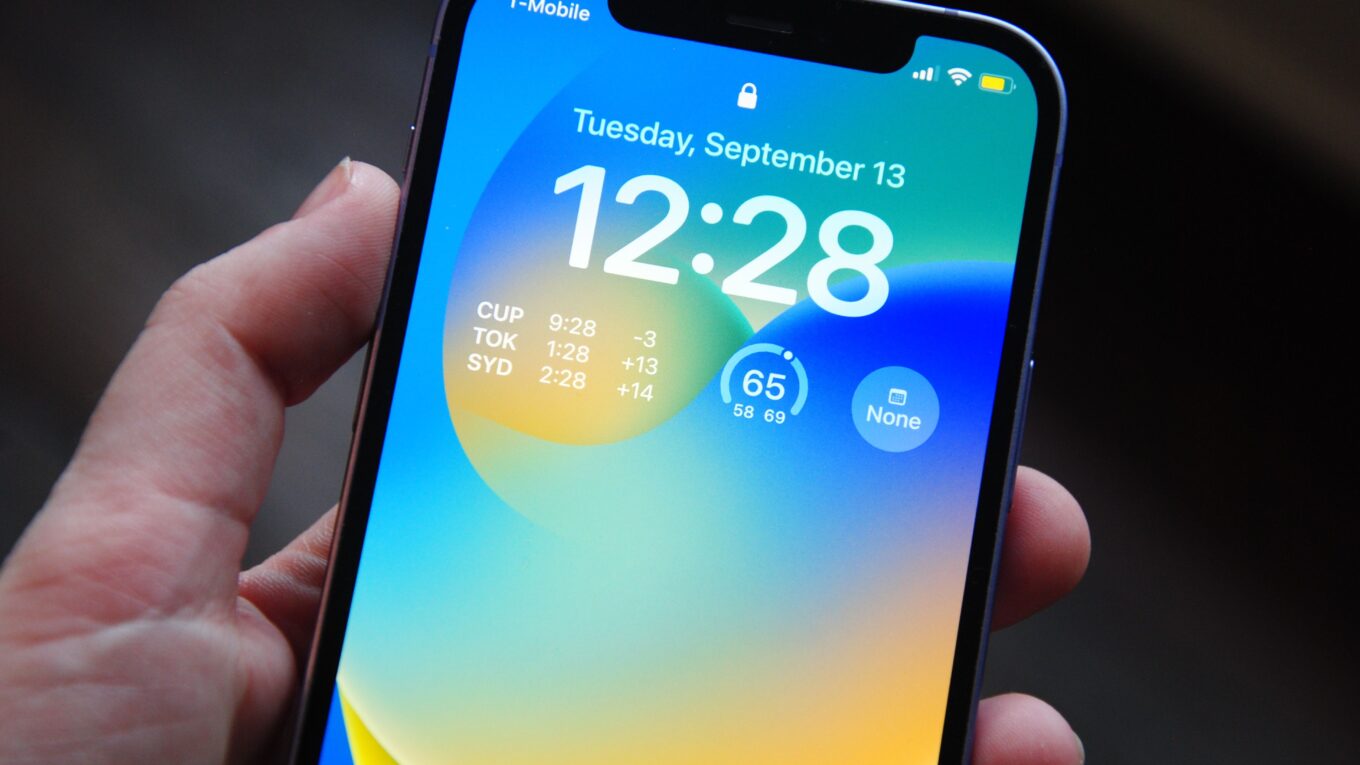
How to make your phone faster
1 How to make your phone faster
Complete guide for Android and iPhone
Have you ever felt that your phone, once agile and responsive, now feels sluggish, takes forever to open apps, and freezes at the most inconvenient moments? That feeling that the device has become obsolete overnight is more common than you think.
The good news is that, in most cases, this slowdown does not mean you need to buy a new phone. Often, the problem lies in settings that can be adjusted, accumulated files, and usage habits that can be optimized. According to experts, most of these problems can be resolved with small changes, without the need for complex maintenance or buying a new smartphone .
Accumulated apps, full memory, visual effects, and pending updates can compromise speed . The real reason, often, is not the processor itself, but the environment where it operates: storage space, battery chemistry, temperature, and even network conditions . With a few simple adjustments and practices, your device can return to having satisfactory performance, and you might even avoid buying a new model . Whether you’re an Android or iPhone user, this complete guide will show you how to make your phone faster.
“My phone was so slow that I was already looking up prices for a new model, thinking the problem was the device itself. That’s when I discovered the trick of reducing animations in Developer Mode — and the difference was so big that I gave up on the purchase right away.”
How to make your phone faster How to make your phone faster How to make your phone faster How to make your phone faster
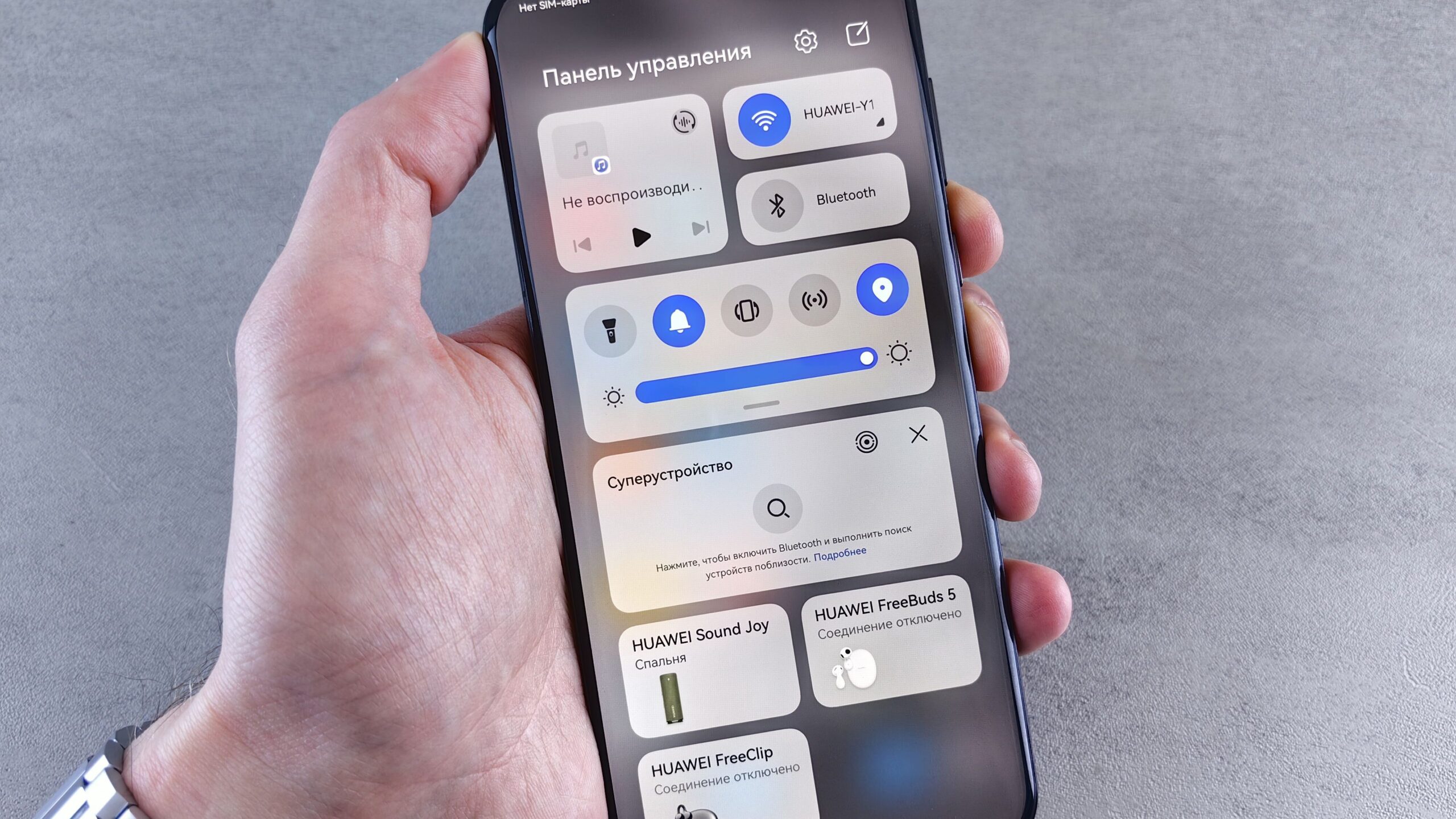
1. The secret trick that can transform your phone
There is a simple and little-known adjustment that can drastically improve the performance of your Android, especially on devices with more modest hardware: limiting system animations . Although animations make the interface look nicer, they consume CPU and GPU processing, which can cause lag .
To enable this setting on Android, you need to activate Developer Mode :
- Go to Settings > About phone (or “Software information”).
- Find the Build number and tap on it seven times in a row. A message will confirm that developer mode has been activated .
- Go back to the main Settings menu and access Developer options .
- Scroll down to the Drawing section and look for: “Window animation scale”, “Transition animation scale”, and “Animator duration scale” .
- Set all of them to 0.5x or, for a more radical effect, disable them completely by selecting “Animation off” .
By reducing these visual transitions, the system redirects resources to essential tasks, making the phone faster — especially on older devices . On iPhone, the analogous feature is called Reduce Motion, found in Settings > Accessibility > Motion .
How to make your phone faster How to make your phone faster How to make your phone faster How to make your phone faster
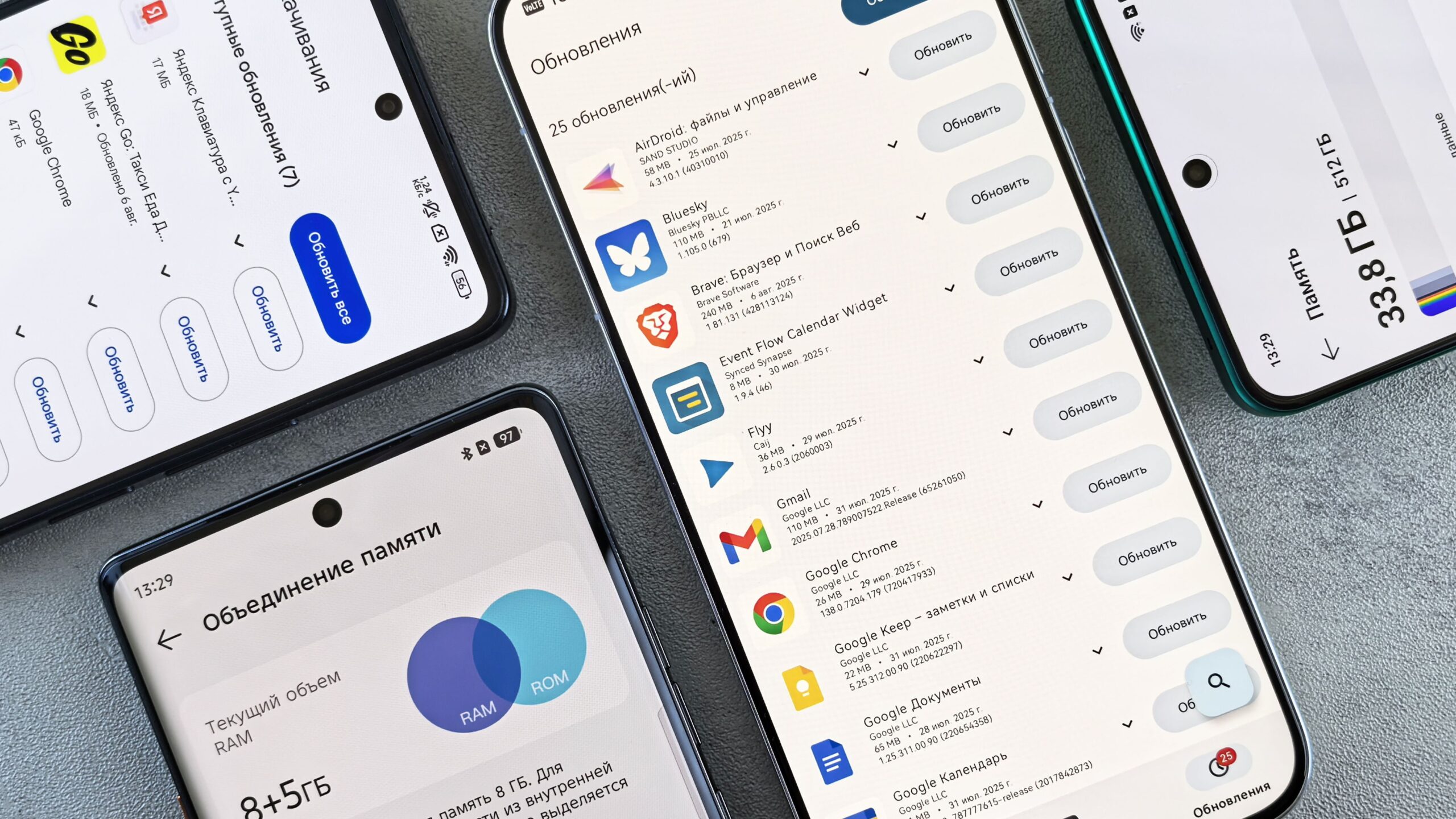


2. Manage RAM and background processes
One of the biggest villains of performance is apps that continue to run in the background, consuming RAM and processor without you even noticing . Although Android likes to keep apps in RAM to make switching between them easier, this can overload the hardware, especially on more modest phones .
On Android
One of the most effective ways to deal with this is to restrict or completely disable the background activity of non-essential apps . Go to Settings > Apps and select an app. Look for Battery options and enable Restricted, or disable background data usage.
On iPhone
iOS memory management is more automatic. However, you can enable the Offload Unused Apps function to free up storage, and you can also manage Background App Refresh (Settings > General > Background App Refresh) to decide which apps can update in the background.
How to make your phone faster How to make your phone faster How to make your phone faster How to make your phone faster
3. Free up storage space
The operating system needs free space to function properly. When internal storage is nearly full, the system struggles to perform basic tasks, which can slow down the phone . Keeping at least 10-15% of storage free helps the device operate more agilely and stably .
- Delete unnecessary files: photos, videos, downloads, audio, and documents you no longer need .
- Use the cloud: back up your photos and videos to Google Photos (Android) or iCloud (iPhone) and free up space .
- Cleanup tools: on Android, the Files by Google app helps identify and delete unnecessary items, such as duplicate photos and large files .
- Clear cache: On Android, go to Settings > Storage > Cached data and clear it. Or, for specific apps, go to Settings > Apps > [App] > Storage > Clear cache .
- On iPhone, to clear cache, you can uninstall and reinstall heavy apps, or use the “Offload App” function in Settings > General > iPhone Storage.
“I kept getting the ‘storage full’ warning and never knew what to delete. When I started using cache cleaning and backing up my photos to the cloud, I freed up almost 20 GB without losing anything important — and my phone started opening apps quickly again.”
How to make your phone faster How to make your phone faster How to make your phone faster How to make your phone faster

4. Uninstall apps you don’t use
Apps you no longer use can still run in the background and consume memory, as well as take up storage space . Remove apps you haven’t used in months. Many phones come with pre-installed apps (bloatware) that can’t be uninstalled but can be disabled .
A good tip is to replace heavy apps with their “Lite” versions, such as Facebook Lite, Messenger Lite, and Instagram Lite, which are designed to consume less memory and processing power .

5. Keep the system and apps updated
Older versions of the operating system and apps may contain bugs and incompatibilities that slow down the device .
- System updates: check in Settings > Software Update. They bring security fixes and performance improvements .
- App updates: in the Google Play Store (Android) or App Store (iPhone), keep automatic updates enabled to receive optimizations and bug fixes .

6. Remove widgets and live wallpapers
Widgets and live wallpapers consume graphics resources and memory . Reduce the number of widgets on your home screen and prefer static wallpapers to improve performance.
7. Restart your phone regularly
Restarting your phone periodically is a simple but often forgotten practice. This habit stops stuck background processes and frees up RAM . Ideally, you should do this at least once a week .
8. Manage overheating
Overheating is a common cause of lag, as the system reduces processor speed (thermal throttling) to prevent hardware damage . This is common during gaming, GPS use, or video recording .
How to avoid:
- Remove the case during intensive tasks or charging .
- Don’t use heavy apps while the phone is charging .
- Avoid leaving the phone in direct sunlight or very hot environments .
- Take breaks between demanding tasks .
9. Check battery health
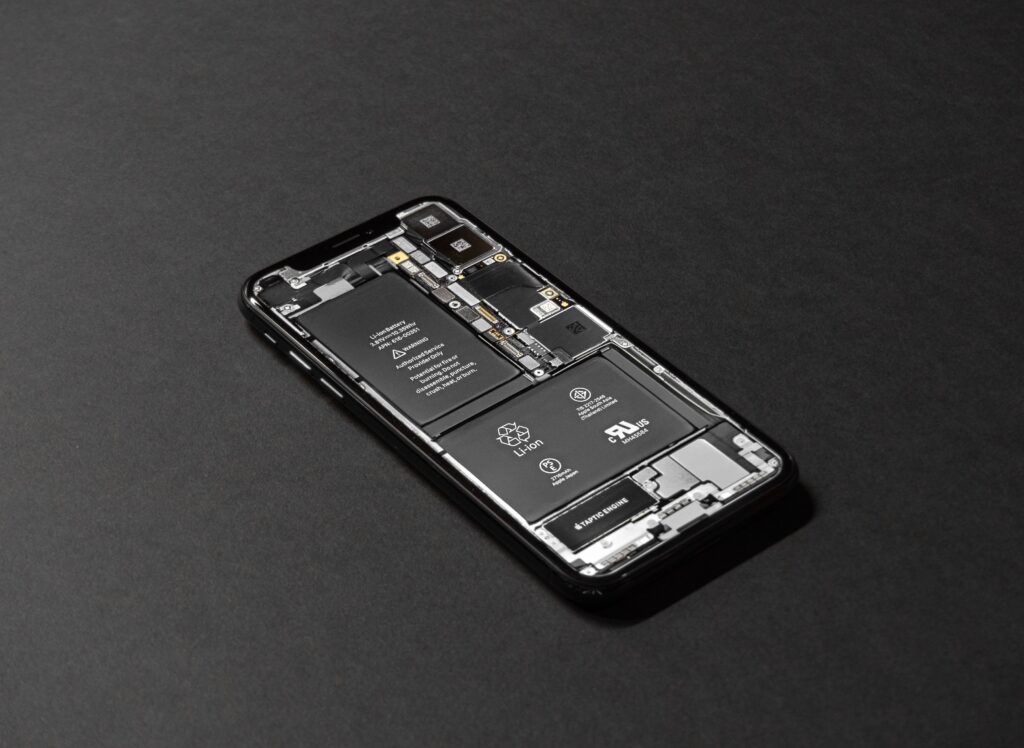
A worn-out battery can reduce phone performance, especially on iPhones, where the system may reduce performance to prevent unexpected shutdowns . On iPhone, this information is in Settings > Battery > Battery Health . On many Androids, brands like Samsung and Xiaomi also offer this option . If capacity is below 80%, consider replacing the battery .
10. As a last resort: Factory reset
If none of the above solutions work, a factory reset can give new life to your device . Formatting leads to data loss, so a backup is essential . Back up all your important data before proceeding. On Android, the option is in Settings > System > Reset > Factory data reset . On iPhone, in Settings > General > Transfer or Reset iPhone > Erase All Content and Settings .
Caution with “cleaner” apps: Many apps that promise to speed up your phone are ineffective or even malicious. They may request excessive permissions, display too many ads, or contain malware. The best protection is skepticism — prefer native system solutions and reliable sources .
How to make your phone faster How to make your phone faster How to make your phone faster How to make your phone faster How to make your phone faster How to make your phone faster How to make your phone faster How to make your phone faster
Frequently Asked Questions about slow phones
Is it normal for a phone to get slower over time?
Yes, over time it’s normal for phones to lose agility due to the accumulation of apps, full memory, visual effects, and pending updates . However, most of these problems can be resolved with adjustments and digital cleaning practices .
What’s the trick to making a phone faster?
There are several, but the most recommended include disabling animations in Developer Mode , limiting background apps , and freeing up storage space .
How do I disable animations on my phone?
On Android, enable Developer options (tap “Build number” seven times) and reduce animation scale to 0.5x or 0x . On iPhone, enable Reduce Motion in Settings > Accessibility > Motion .
What does “cache” on a phone mean?
Cache is a temporary storage area that apps and browsers use to store data and speed up loading. Over time, it accumulates and can slow down the phone . Clearing cache frees up memory and optimizes performance .
Do background apps really slow down a phone?
Yes. Many apps continue running even after being closed, consuming RAM, processing, and battery . Restricting background activity for these apps can significantly improve performance .
Does restarting the phone help improve speed?
Yes. Restarting stops stuck background processes and frees up temporary memory . Ideally, you should do this at least once a week .
Does formatting the phone solve the slowness problem?
Yes, a factory reset can be the last resort and return the phone to its original state, drastically improving performance . But remember to do a full backup of your data first, as formatting erases everything.